Celebrating March Madness, Facebook has rolled out an
update that lets you play basketball in Messenger app. Just update your
instant messaging app and send a basketball emoji to your friend to
start the game. Read more to know more about the game.
Facebook
is here to make your boring office and school hours a little bit
exciting. To celebrate the basketball fever, the company has rolled a
little update into its Facebook Messenger app that lets you play
basketball in Messenger app.
Just like everybody else, it looks like Mark Zuckerberg is very much
excited about March Madness. Earlier, Facebook vowed its users by
embedding a secret chess game inside its instant messaging application.
So, are you wondering how to play basketball in Messenger app?
How to play basketball in Messenger app?
To get started with the basketball game in your Facebook Messenger
app, all you need to do is fire up a conversation with a friend and send
him/her a basketball. Note that you need to send a basketball emoji
from your keyboard, not a sticker. If you are unable to locate it in
your plethora of emojis, here’s one for copying and pasting – ?
Before doing this jugglery, make sure that you’ve updated your Messenger app from App Store.
After sending the ball to your friend, click on it to start the game.
As soon as you do this, you’ll see a basketball on your screen and you
need to swipe the ball up at the bottom of the screen to take shots.
After each try, your starting position will change and the game will get
tougher as you score 10 points.
Depending upon the result of your performance in the game of
basketball in Messenger app, you’ll be greeted with a frowning face or a
flexing bicep. The game tracks people in chat, so that die-hard fans
are able to show off their skills in this virtual basketball game. This
game of basketball in Messenger app also shows the player with the
highest score in the upper-right corner.
Go ahead, give it a try and tell us your highest score in the comments below.
If you want to
increase your Wi-Fi speed, the first criteria would be to get the
best Wi-Fisignal. There is no way out where you can leverage your Wi-Fi
data without getting the best Wi-Fi signal with a good strength.
fossbBytes has come up with an article covering all the aspects of
getting the best Wi-Fi signal by telling you how interference, Wi-Fi
channel, the line of sight etc. matters.
Getting the best Wi-Fi signal
in your own house is like finding a solution to come out of the maze
while being stuck in the maze. We take our Wi-Fi router for granted and
we just place it anywhere knowing that all of us are getting the
internet connection.Since we are
all paying for the data usage, it’s our right to utilize the Wi-Fi to
its fullest which we ignore because we take life as it comes. So, we
have come up with some tricks and tweaks on how can we get the best
Wi-Fi signal in our house.
How to Get the Best Wi-Fi signal in your house:
Put the Wi-Fi router ideally in the central location of the house as a Wi-Fi router extends the Wi-Fi signal in every direction.
Avoid keeping the Wi-Fi router in one of the corners of your house
because more than half of our Wi-Fi signals are ended up providing
connections in the neighborhood.
If your data port lies on one of the corners of the house then
consider running a long ethernet cable to the center of the house, it
does not cost much.
Remember, any solid structure like a wooden wall or a concrete wall are impediments to the Wi-Fi signal.
Do not forget the Wi-Fi antenna. They have some serious effect on
the quality of the signal you receive. If you have not one, better buy
one to get more coverage and stronger signal.
You can use a plenty of apps available out there for free of cost to
measure your Wi-Fi signal strength. This way, you can easily decide the
perfect or at least, close-to-perfect location for your Wi-Fi router.
Wi-Fi router should be kept in line-of-sight to your device to get a strong Wi-Fi signal.
Dark spots are the points in our room where Wi-Fi signals get
canceled out after reflection. So if you are not getting a good signal
at a particular location, try switching your position a little bit. Here
is the video explaining that:
Many materials absorb a quite bit of the signals and a concrete wall absorbs the most.
Some of the things which should be avoided when planning to keep a Wi-Fi router nearby are:
Concrete wall
Water body like an aquarium, the little fountain, microwave etc.
A vertical antenna position helps make a better in horizontal space and Vice versa to get the best Wi-Fi signal.
Besides, the above observations which are mostly based on the
physical locations of placing a Wi-Fi router, there are some other
technical tweaks which help you improve your Wi-Fi router’s performance.
Some of the tricks to get a strong Wi-Fi signal are:
Update router firmware
Choose correct wifi channel
Disconnect old devices from Wi-Fi router
Replace antenna
Restarting your router etc.
How to choose the best channel for your Wi-Fi router?
These days every other house has their personal Wi-Fi routers. These
intelligent routers have the capability of choosing the best channel for
a better performance but sometimes, that does not work as the perfect
solution. This article talks about the different
channels, their frequency range, co-channel, channel interference and
also running some diagnostics test on Mac and Windows to find the right
channel for you.
I hope this article on how to get the best Wi-Fi signal in your house
has been informative as it talks about all the aspects of a Wi-
WiFi router like interference, channel etc. If you are also aware of
some tricks which are capable of boosting the Wi-Fi and getting us a
strong Wi-Fi signal, kindly share that in the comments below.
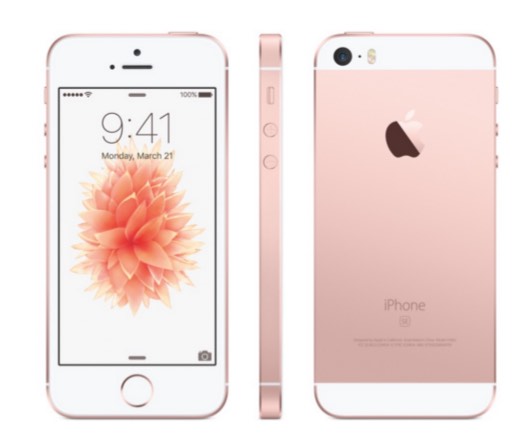
Apple has finally launched iPhone SE with a 4-inch screen and powerful A9 processor and M9 motion coprocessor.
The company has listened to the demands of the users who wanted a small
form factor iPhone that feels good to hold in hands. The phone comes in
16GB and 64GB variants with its price starting from $399.
Its Spring 2016 event, Apple has officially introduced the
much-awaited iPhone SE. The spoilers that leaked ahead of the event, as
it turns out, were pretty accurate.
This 4-inch phone borrows its looks from the familiar iPhone 5S and
feels good to hold in hands just like the older models. iPhone SE comes
with no camera protruding and has a matter chamfered curvature on edges.
The phone comes in silver, gold, space grey and rose gold.
Apple iPhone SE is the most powerful 4-inch phone:
If we talk about the internal specs of the new member of iFamily, it looks pretty solid. Its A9 processor and M9 motion coprocessor
make it 2X faster than the iPhone 5S. It also comes with an NFC chip
for Apple Pay. The phone also comes with my favorite always-on “Hey
Siri” functionality.
The phone’s camera has seen an upgrade with a 12-megapixel iSight
sensor, Retina flash and 4K video capture. Just like flagship models
iPhone 6s and 6s Plus, you get the ability to capture Live Photos.
Another key thing to remember, Apple has also included its latest
cellular and Wi-Fi technology in iPhone SE. As a result, the company
claims that it can reach LTE speeds that are 50 percent faster than its
predecessors.
While SE brandishes Apple’s trademark Touch ID, it lacks the 3D touch
technology that allows deeper interactions with the screen.
Starting from $399, iPhone SE comes with 16GB internal storage. The
higher end model costs $499 for 64GB storage. The phone will be
available for pre-order on March 24 and will hit Apple Stores on March
31. All things considered, Apple iPhone SE looks like a promising
device.
VPN is a technology used to setup a private network
over the internet to share the resources of a corporate intranet with
remote users and other office locations of the company.
Virtual
Private Network or simply VPN is a personal network created over the
internet, so that the devices connected over it can have an
uninterrupted communication, regardless of any physical or digital
barriers in the mid-way.
How it works?
The working of VPN is not a tough deal to understand, though it is.
But, before that, you need to get an idea about the protocols or set of
rules in laymen terms, used by VPN in providing a secure personal
network. Let’s tell you more about it: SSL (Secured Socket Layer): It uses a 3-way
handshake method for assuring proper authentication between the client
and server machines. The authentication process is based on cryptography
where certificates behaving as cryptographic keys already stored in the
client and server, are used for initiating the connection. IPSec (IP Security): This protocol can work on
transport mode or tunnelling mode, so that it can do its job of securing
the VPN connection. The difference between the two is, transport mode
only encrypts the Payload in the data i.e. only the message present in
the data, whereas tunnelling mode encrypts the whole data to be
transmitted. PPTP (Point-To-Point Transfer Protocol): It connects
a user located at some remote location to a private server in a VPN
network, and also uses the tunnelling mode for its operations. Its low
maintenance and simple working makes it the most widely adopted VPN
protocol, further credit goes to the inbuilt support provided by
Microsoft Windows. L2TP (Layer Two Tunnelling Protocol): It facilitates
the tunnelling of data between two geographical sites over the VPN
network, often used in combination with the IPSec protocol which further
aids to the security layer of the communication.
So, you have a rough idea about the various protocols used in a VPN.
We shall proceed further and see how it works. When you are connected to
a public network such as internet, you can assume that all your data is
flowing through a big tunnel along with the data of other users.
So, anyone who wants to spy on you, can easily sniff your data
packets from the network. When VPN comes into the scene, it actually
provides you a personal tunnel inside that big tunnel. And all your data
is transformed into garbage values, so no one can recognize it.
Setting up a VPN Connection involves Three Phases:
Authentication: In this phase, data packets are
first encapsulated, basically wrapped inside another packet and some
headers and other stuff are attached, all done to conceal the identity
of the data packets. Now, your device initiates the connection by
sending a Hello request to the VPN server, which replies with an
acknowledgement and asks for the user credentials to clarify the
authenticity of the user. Tunnelling: After the authentication phase is
finished, what we say, an imaginary tunnel is created which provides a
direct point to point connection through the internet. We can send
whatever data we want to via that tunnel. Encryption: After we’ve successfully created the
tunnel, we can send whatever information we want to, but that
information is still not safe if we are connected to a free VPN service,
which is also used by other people. So, we encrypt the data packets
before sending them over the tunnel, thus barring any other user to peep
into our packets, as he will only see some unrecognisable rubbish data
flowing through the tunnel.
Say, you want to access a website, your device will send the access
request to the VPN server which will then forward the request to the
website in its name and receive the data from it. This data will then be
transferred back to your device. And the website will think, the VPN
server is the user and will find no trace of your device as the actual
user. Remote User Access: A VPN connection is used to
provide direct access of a corporate network to a user who is not in the
geographical coverage of the corporate network. Logically, the remote
user is connected just like a normal user who is using the network
within the corporate premises. Site to Site: VPN is also used to provide a
homogenous network environment to a corporate firm having its office
locations in different parts of the world. Thus, creating an
uninterrupted sharing of resources bypassing the geographical hurdles.
Other uses include, accessing those services on the internet which
are not available in a particular country or region, accessing censored
content or if a user simply wants to remain anonymous on the internet.
Pros and Cons:
The biggest advantage of using a VPN is the cost effectiveness it
facilitates in providing a single private network in comparison to using
separate leased lines which can burn the pockets of corporate firms.
All credited goes to the internet, for acting as the medium for
uninterrupted VPN connections.
Apart from all the good things VPN does for us, it has its weak sides
too. Not having a streamlined procedure for ensuring Quality of Service
(QoS) over the internet, is the biggest incapacity VPN technology has
in its possession. Furthermore, the level of security and authenticity
outside the private network is beyond the purview of VPN technology. The
incompatibility between different vendors only adds to its bunch of
drawbacks.
Popular VPN services:
HideMyAss, PureVPN, VyprVPN, all these are well known the QoS and security they provide in their VPN connections.
Cyber Ghost, Surf Easy, Tunnel Bear are some free VPN services you
can use if you don’t want to shell out your pocket. But you’ll have to
satisfy yourself with less features, download limits, or advertisements.
Also, these free services can’t beat the paid services, note that.
VPN on Android:
You can also setup a VPN connection on your smartphones running on
Android OS. This allows you to access your company’s private network
right on your Android Devices. VPN also facilitates the network
administrator to control your device, add or delete data and track your
usage.
Winding Up:
VPN has so far equipped us with an extraordinary level of security
and anonymity we can accomplish while sharing our confidential data over
the internet. Corporate giants have always admired the ease and
uniformity they can engineer in their network while using VPN. Though,
it has its limitations, but so far it has outperformed our expectations
and should be praised for the cost effectiveness it provides in its
operations.
Have a look at this video about VPN:
Writing is a good habit, if you use your creative mind and write some
good stuff, it would make you sound more intelligent among your friends.
So, don’t wait, just use your keyboard and type your imagination in the
comments section below.
You might have seen that a website URL generally
starts with HTTP or HTTPS. Do you know what is the difference between
the two? Read further to find out more.
In
your browser’s address bar, the URL of every website you visit always
starts with either HTTP or HTTPS, the latter one considered more secure.
You might have noticed that numerous times while you were busy with
your internet life, didn’t you? Even Facebook with almost a billion
daily active users flaunts its status as of a HTTPS website and you
confidently post your personal information without giving it a second
thought. What if it gets into the wrong hands? Well, you know chances
are less such blunder ever happens on the Facebook planet.So,
whether it is Facebook or online payments involving your credit card
information, all you want is HTTPS written as the URL. So, why the
simple HTTP website isn’t used for online payments or storing your
personal data? There is an obvious difference between the two.
What is HTTP?
Hypertext Transfer Protocol it stands for, which your teacher made
you learn by heart in your 4th grade. It is a request/response protocol
based on the client/server communication mode. A client or user agent is
your web browser or any other device which can access, receive, and
display web content.
The client sends a request message to a server which hosts HTML content, replies with the response message
that may contain the requested HTML content by the client. The response
message is a confirmation that the server has successfully received the
Request message.
So, HTTP can be considered as a rule book that your web browser
refers, like, what to do when you press enter after typing a website
address. It is a Stateless protocol which means there is no relation
between two consecutive HTTP commands given to a website. Furthermore,
there is a list of Status Codes used by the web server to inform your
browser if there is any problem. For example, “404 Not Found” is used
when the webpage is not present at the URL entered in the browser.
The credit for the original development of HTTP goes to Tim
Berners-Lee – who proposed the idea of the ‘World Wide Web’ – and his
CERN team, which was developed alongside the HTML (Hypertext Markup
Language). The very first HTTP documentation was published in 1991 as
HTTP/0.9 which consisted of only one method GET. The development
progressed, with HTTP/1.0 in 1996 and HTTP/1.1 in 1997.
HTTP/1.1 facilitated persisted connections (more than one
request/response on the same HTTP connection), improved caching, new
status code, Enhanced compression support, OPTION method for Cross
Origin Resource Sharing in web application and much more.
HTTP uses the reliable TCP (Transmission Control Protocol) Port 80 to
send and receive data packets over the network for internet
applications like email, World Wide Web, File Transfer, etc. However, it
also utilizes UDP (User Datagram Protocol) which is an unreliable
protocol but contributes to reduced network latency used for live
streaming (not to be confused with preloaded videos on YouTube) which
requires continuous packet flow done at the cost of minor packet loss
during the transmission.
The latest addition to the family is HTTP/2,
developed by Hypertext Transfer Protocol Working Group of the Internet
Engineering Task Force. This specification was approved as a Proposed
Standard by IESG in February 2015 and was published in May 2015. It has
been adopted by all the famous web browsers.
What is HTTPS?
The development of HTTPS began in 1993 by Netscape Communications, an
AOL company, who had their famous Netscape Navigator web browser in the
1990s. Originally implemented with SSL (Secure Socket Layer), the HTTPS
protocol was later upgraded to use SSL’s newer transformation TLS
(Transport Layer Security). It also uses TCP to send/receive the data
packets but uses a different Port 443 in order to do so.
The ‘S’ stands for secure in HTTPS. Now, what does it mean in laymen
terms? A website which uses HTTPS protocol establishes an encrypted
connection with your device. So, if you try to send some data to the
website, say any name, like Steve Jobs. The encrypted form will look
somewhat like ‘xkndsoumnkjbktkctfc’. And you can’t understand it, do
you?
The data to be transmitted is encrypted using a Public Key
which is then used by the recipient to decrypt it. The public key is
created by a server administrator or a user, which is included in a
digital certificate known as SSL Certificate and is signed by
certification authorities like VeriSign. Any act which involves sharing
of the Public key to unknown devices must be prohibited, as it may
compromise the level of encryption, ultimately leading to disclosure of
personal information or user credentials.
Most modern web browsers now feature inbuilt support for HTTPS
protocol. A web browser integrated with HTTPS protocol requires SSL
Certificate signed by certification authorities in order to authenticate
a server or a website. You might have seen a green coloured padlock
placed before HTTPS in the Google Chrome address bar. Once you click it,
the certification authority information of the website will be
presented to you.
The HTTPS website you’re visiting must provide a valid certificate to
your web browser in order to gain browser’s trust. If it is unable to
do so, the browser will display a warning message. So, the website
obtains it either for free or after paying some bucks to the
certification authorities.
Basically, HTTPS is simply an HTTP connection wrapped in SSL/TLS
encryption layer. All done to protect the integrity and privacy of the
data being transmitted and the assurance that it won’t fall into wrong
hands while in transit. Its main motive is to check the authenticity of
the website being visited. An unsecured connection like a public WiFi
network might serve as the medium for man-in-the-middle attacks and
eavesdropping.
The Difference between HTTP and HTTPS
In a nutshell, HTTPS can be regarded as an advanced modification to
HTTP equipped with more security. However, HTTP uses Port number 80
while HTTPS uses Port number 443 by default and that differentiates the
two a separate connection types.
The sole intention of HTTP is to display the information on the
recipient device without bothering about how the data gets transmitted
between two devices. And it is the same for HTTPS, the only advantage
is, it packs an extra layer of security by using SSL/TLS which is also
utilized by VPNs to encrypt data, thus protecting from eavesdroppers.
Network topology is defined by two types — physical
topology and the logical topology. While physical topology talks more
about the geometry and physical placement of the devices on the same
hand, logical topology is more about the way data communication or
signalling happens among the devices.
What is Network Topology?
Network
topology is the arrangement of the different networking elements like
network links, computers, switches, nodes, Wi-Fi access points, laptops
and other network devices in a computer network.There are two types of Network Topologies:
Physical Network topology and,
Logical Network topology
What is a Physical topology?
A Physical topology defines how all the network devices are connected
physically in a computer network. It mostly defines the physical
connections among the devices.
What is a Logical topology?
A logical topology defines the logical connectivity of network
devices on a computer network. So, it might happen that the
devices connected in one type of physical topology might have different
underlying logical topology.
If we elaborate more on the physical topology, it is essentially the
placement of the various network components in a computer like the
placement of the devices, the connection among the devices, installation
of the cables etc. On the other hand, logical connection defines how
data flows among the devices.
For example, let say there are five devices (A, B, C, D and E) that
are connected in a row. This configuration of network devices might look
more like a Bus topology. But let’s say device A can directly transmit
the data to the device E. That means it looks more like a Circle which a
Ring topology logically but a bus topology physically.
We will talk about different kinds of topologies — physical and
logical — one by one in the next article. If you want articles on some
particular topic, feel free to ask us in comments below.
To make your Windows 10 PC experience more secure,
Microsoft is launching a new service called Windows Defender Advanced
Threat Protection (WDATP). Acting as a complementary service to Windows
Defender, this mixed service of a cloud service and client technology
will help detect threats that go undetected past other security
measures.
Back
in July 2015, Redmond released Windows 10 with the hopes of attracting 1
billion installations in a record time. With the help of its free
Windows 10 upgrade offer for Windows 7 and 8.1 PCs, the operating system
managed to find its place on millions of computers in a short span of
time. While the operating system was praised for its new features like
voice search like Cortana, its inbuilt antivirus remained a disappointment.But,
Microsoft is claiming that it’s going to change the scenario with
Windows Defender Advanced Threat Protection. It’s supposed to be a
protection for a large company-wide network that will keep an eye on the
complete network. Instead of looking out for individual files, it’ll
shift the focus to the system’s behaviour as a whole by keeping an eye
on the symptoms.
WDATP will add an extra
security layer to the already existing features like Windows Hello,
Credential Guard, Device Guard, and Enterprise Data Protection. WDATP
gives the systems admins a choice to scan the activities during the past
six months to investigate the state of a machine regarding a simple
attack timeline.
This service, built on top of the existing Windows Defender service,
WDATP provides a new post-breach layer of protection to Windows 10.
Using a mixed service of a cloud service and client technology, it will
help detect threats that go undetected past other security measures.
On its blog, Microsoft lists 3 actions taken by WDATP:
Detects Advanced Attacks
Response Recommendations
Complements Microsoft Advanced Threat Detection Solutions
With an upcoming update, WDATP will be built into Windows 10 and kept
up-to-date to lower the cost and enhance the performance. Due to a
cloud backend or on facility infrastructure, no type of maintenance is
required — another plus point.
“Just like we developed Windows 10 with feedback from millions of
Windows Insiders, we worked with our most advanced enterprise customers
to address their biggest security challenges, including attack
investigations and day-to-day operations, to test our solution in their
environments,” Microsoft writes on its blog.